> For the complete documentation index, see [llms.txt](https://docs.overse.app/hubble/llms.txt). Markdown versions of documentation pages are available by appending `.md` to page URLs; this page is available as [Markdown](https://docs.overse.app/hubble/block-types/image-with-text.md).
# Image with Text
The Image with Text Block allows you to combine a compelling image with a customizable message on your Shopify customer account pages. Use this block to communicate key information, showcase promotions, or enhance your branding.
### Key features
* **Customizable heading**: Add a headline to grab attention.
* **Image upload**: Upload a high-quality image that complements your message.
* **Dynamic text content**: Provide a customizable text area to share details.
* **Targeted display**: Use filters to display the block to specific customer groups.
{% hint style="info" %}
Want to show different content for different customers? [Learn about dynamic blocks.](/hubble/blocks/dynamic-blocks.md)
{% endhint %}
***
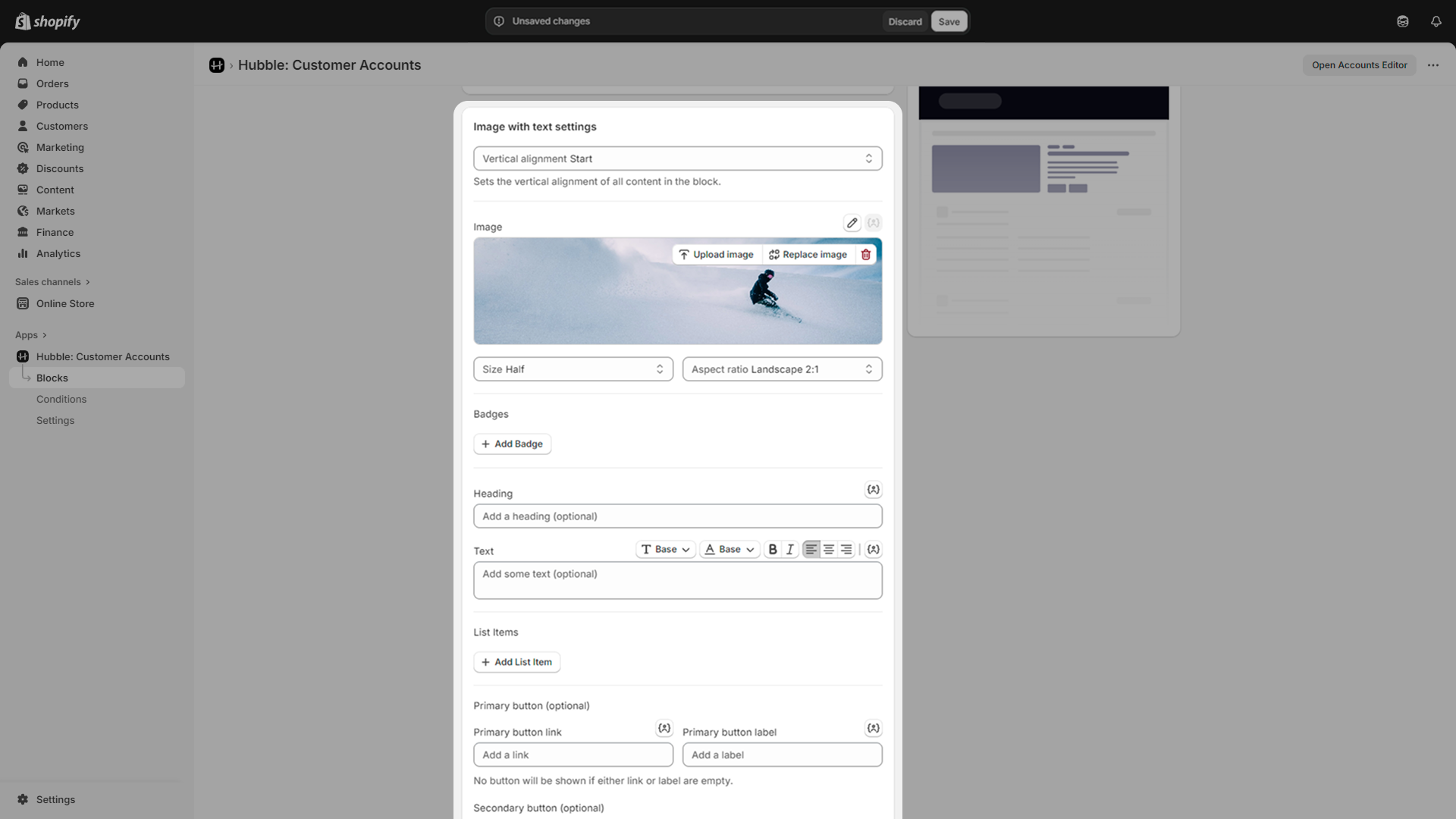
### **Customize the settings**
Provide the following to create an Image with Text Block:
* **Heading**: Enter a short and engaging headline (e.g., "Discover Our Story").
* **Image**: Upload a high-quality image to pair with your text.
* **Text content**: Write your message in the text box provided.
* Tip: Keep it concise and engaging to capture attention.
***
### Use cases
* **Brand Story**: Share your brand’s mission and values with an image that resonates.
* **Product Promotion**: Highlight a featured product with a descriptive image and text.
* **Seasonal Messaging**: Use festive visuals and copy to promote seasonal events or collections.
### Frequent questions
Can I change the look/style of the block?
All possible customizations options in regards to styling are already included in the block.
{% hint style="success" icon="trophy" %}
Looking for more advanced customization? [Custom blocks](/hubble/block-types/custom.md) give you greater control over layout, styling, and content across your customer account pages.
{% endhint %}