> For the complete documentation index, see [llms.txt](https://docs.overse.app/hubble/llms.txt). Markdown versions of documentation pages are available by appending `.md` to page URLs; this page is available as [Markdown](https://docs.overse.app/hubble/block-types/special/order-items-list.md).
# Order items List
The Order Items List Block displays a list of a customer's orders directly on the customer account pages. It provides easy access to order details, helping customers manage their purchases efficiently.
## Key features
* **Default block**: The Order Items List Block is automatically included and does not require additional setup.
* **Customizable in Shopify editor**: Add a heading and manage its placement directly in the Shopify Account Editor.
* **Actions integration**: Enhance the block with Line Item Actions to allow features like reordering or contacting support.
## Order items List block
The Order Items List Block displays a customer’s orders directly on their account page. It is highly customizable through Shopify’s Account Editor and additional configurations unlocked by generating a Block ID.
{% stepper %}
{% step %}
#### Access Special Blocks
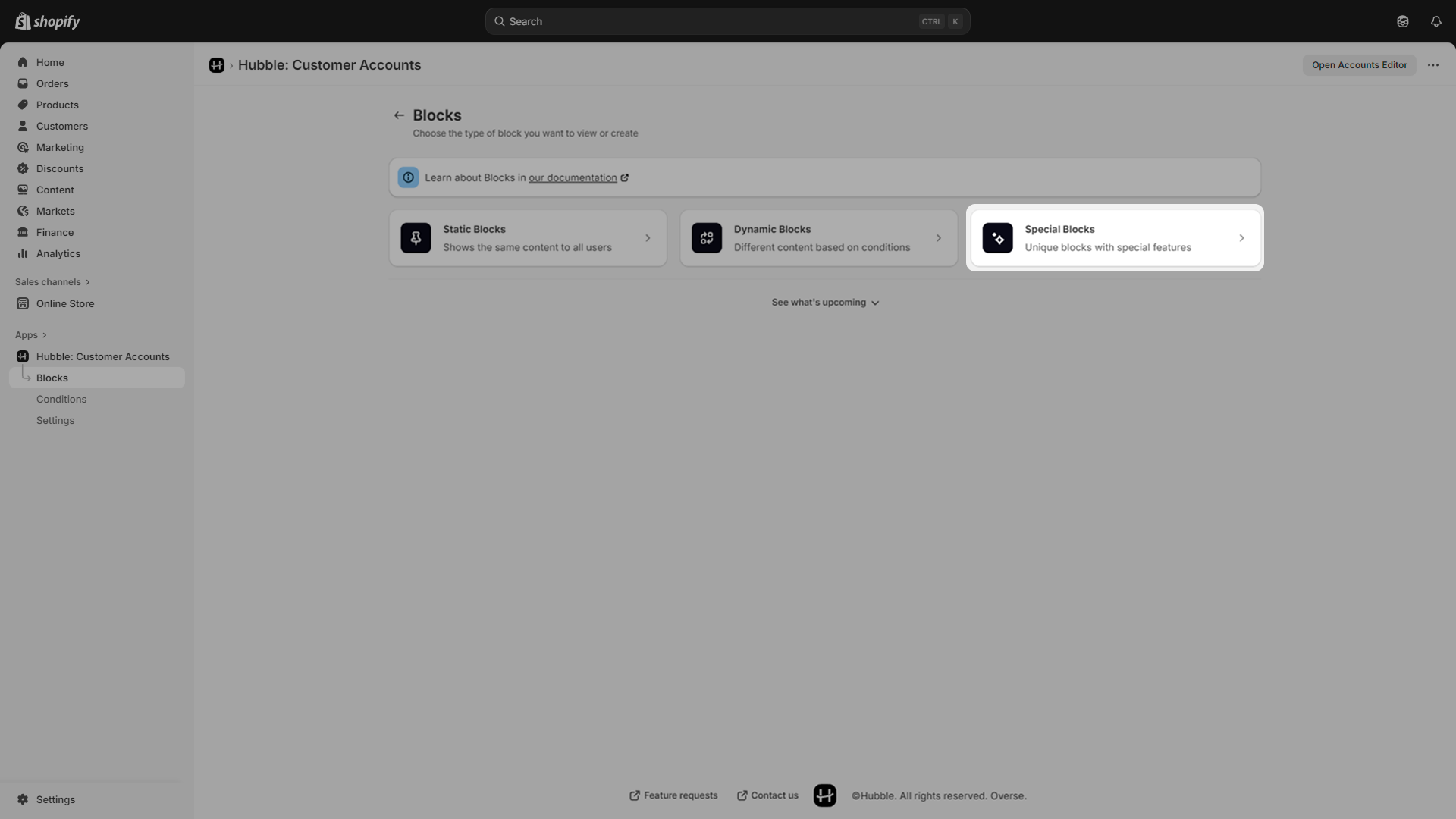
Open the sidebar and click the **Special Blocks** card.
{% endstep %}
{% step %}
#### Select Order items List
Click the **Customize** button that is in the **Order Items List** card.
{% endstep %}
{% step %}
#### Generate the Block ID
On the Order Items List page, click the **Generate Block ID** button (located in the “Get your Block ID” card).
{% hint style="warning" %}
You must generate a Block ID to unlock further configurations.
{% endhint %}
{% endstep %}
{% step %}
#### Configure additional settings
Once the Block ID is generated, the following options become available:
**Enabled:** On or Off, this controls the visibility of your block.
**Block ID:** Use this to publish your block in a later step.
**Manage Line Item Actions:** This is a link towards [Line Item Actions](/hubble/block-types/special/order-item-actions.md), a block that can be integrated.
{% endstep %}
{% step %}
#### Publish your block
Click the **Publish** button that is in the right-top corner and follow the steps that will appear.
{% hint style="success" %}
Success: The block is now live on the customer account pages.
{% endhint %}
{% endstep %}
{% step %}
#### Configure Editor settings
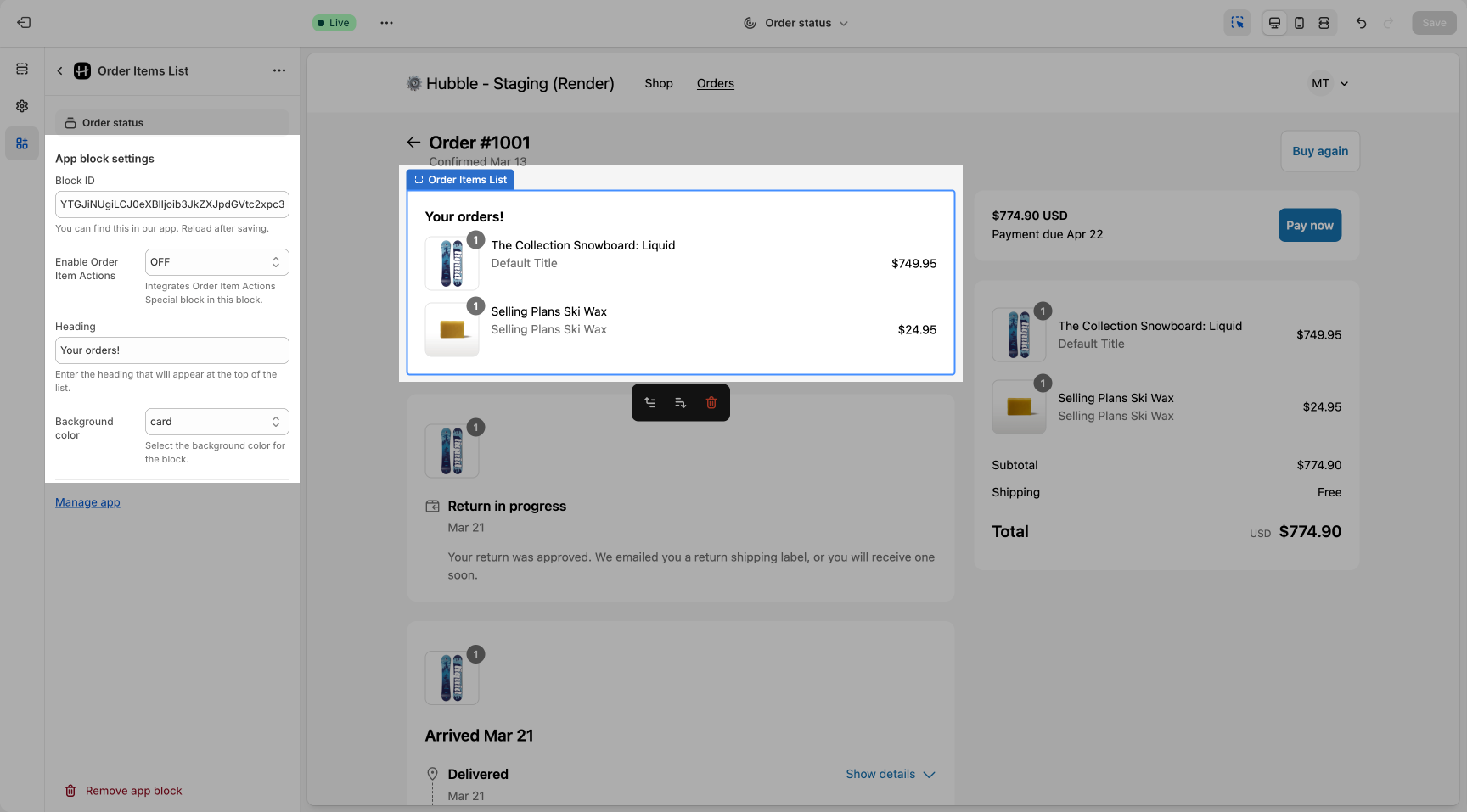
Layout and theming settings are available within the Shopify's Account Editor for this block.
Configure settings such as:
**Optional heading:** add a heading (e.g., “Your Orders”) above the list to improve clarity.
**Background color:** choose from these styles: Card, Base, Subdued, or Transparent.
**Toggle enable/disable Order item Actions:** toggle interactive actions (e.g., reorder, support) for each order item.
{% hint style="info" %}
Use Shopify’s Account Editor to adjust the block’s placement and add an optional heading.
{% endhint %}
{% endstep %}
{% endstepper %}